jueves, 3 de marzo de 2011

Modificar o reducir lista de : "Abrir con Otra Aplicación" en Ubuntu gnu-linux

1) ir a:          cd ~/.local/share/applications/
2) Borrar-Agregar-Modificar a gusto.

PD: Si queremos ABM (Alta Baja Modificación) del menu de WINE ir a:   /.local/share/applications/wine

lunes, 28 de febrero de 2011

Instalar Google Earth 6 en Ubuntu / Linux


1) Descargar googleearth.bin
2) Instalar.
sudo apt-get install lsb-core
sudo apt-get install ia32-libs

3) Permisos y Extraccion en una Carpeta Temporal.
chmod +x GoogleEarthLinux.bin
./GoogleEarthLinux.bin --target /tmp/ge

4) Ir a la carpeta segun corresponda 32 o 64bit
cd /tmp/ge/setup.data/bin/Linux/x86/
cd /tmp/ge/setup.data/bin/Linux/x86_64/

5) Reemplazar setup.gtk
mv setup.gtk setup.gtk2
cd /tmp/ge
6) Instalar GoogleEarth
sudo ./setup.sh

jueves, 6 de enero de 2011

Mini-Panel Gnome >>> Instalando Wingpanel en Ubuntu desde PPA


Wingpanel es la expresión de minimalismo llevada al (o los) panel(es) de Ubuntu. Es decir que es un panel superior para Ubuntu, pero que no ocupa más que el estricto lugar que necesita.Vale aclarar que este panel fue creado por el equipo de Elementary.
Nada mejor para presentarles esta nueva opción que un video al respecto:


Si les ha interesado este nuevo panel, para instalarlo basta agregar el repositorio PPA:
sudo add-apt-repository ppa:ripps818/ppa
sudo apt-get update
sudo apt-get install wingpanel
Para iniciarlo, debemos presionar Alt+F2 y tipear “wingpanel“.
Nota: Wingpanel sólo funciona en Ubuntu 10.10.
Si deseamos utilizarlo siempre, sólo tenemos que borrar el panel de GNOME y agregar Wingpanel a los programas al inicio.
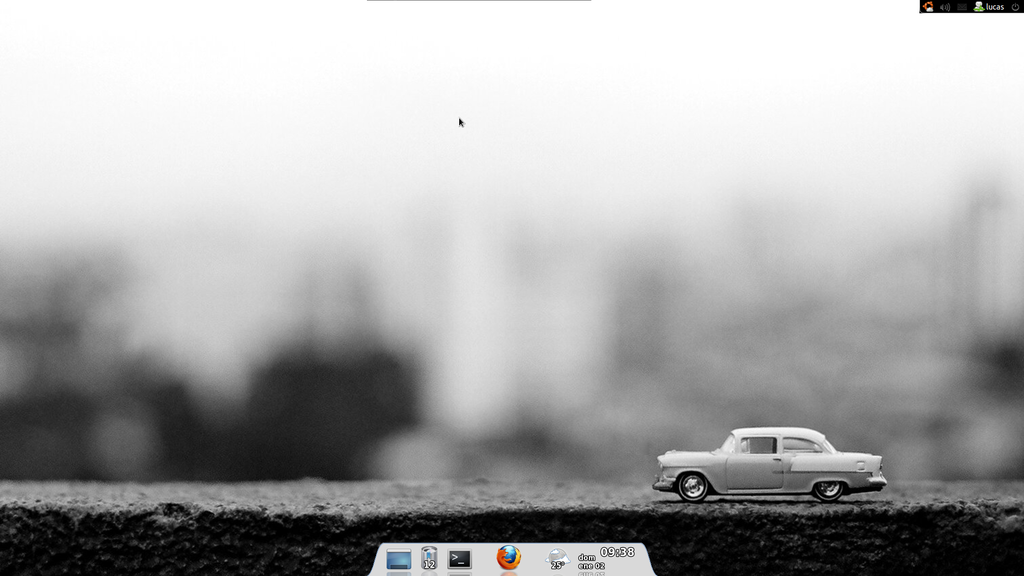
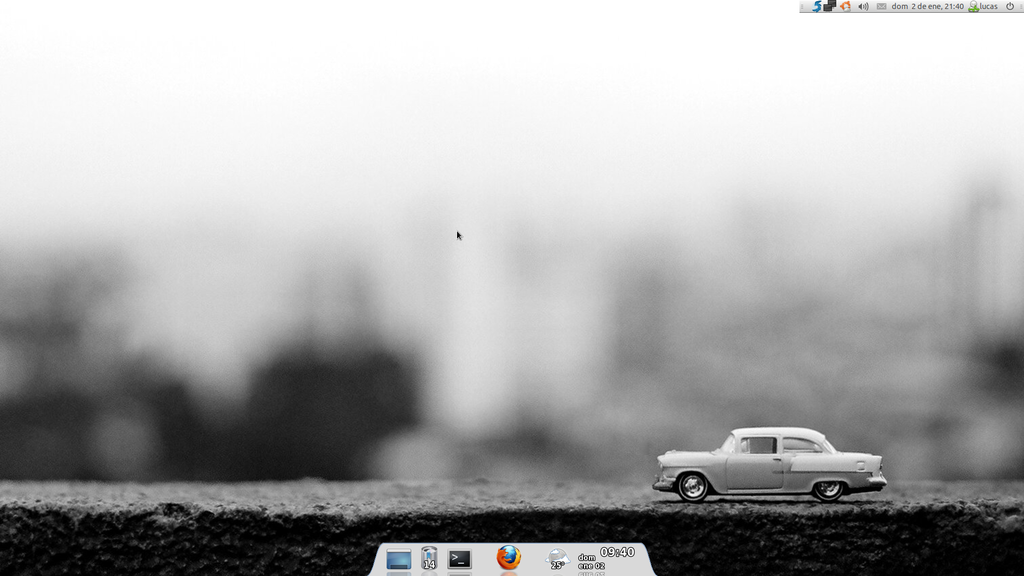
Así quedó mi escritorio:

readetrabajo1 002 Instalando Wingpanel en Ubuntu desde PPA, más un tip de moda ;)

Escritorio ultra-minimalista

Tip: Convertir el panel de GNOME en un panel tipo Wingpanel fácilmente.
  1. Removemos el menú de arriba a la izquierda y todos los applets que usemos.
  2. Click con el botón derecho sobre el panel. Desmarcamos la opción Expandir y marcamos Ocultar automáticamente. Luego arrastramos el panel al lugar donde lo queremos dejar.
  3. Finalmente, debemos hacer que el panel no se oculte, que parezca que flota sobre las barra de títulos de nuestras aplicaciones. Iniciamos gconf-editor y vamos a apps > panel > toplevels y elegimos el panel superior con el nombre que tenga (en el mío es top_panel_screen0, pero he visto que puede tener otro nombre). A la opción hide_delay le cambiamos el valor por 2147483647 que es el máximos soportado. Quiere decir que tardará alrededor de 600 horas en ocultarse el panel.
Así quedó el mío:

readetrabajo1 003 Instalando Wingpanel en Ubuntu desde PPA, más un tip de moda ;)

Está medio desnudo, me falta armar un conky, es cuestión de tiempo.

Si se arrepienten del cambio, siempre pueden abrir una consola y tipear:
gconftool-2 --recursive-unset /apps/panel

Fuente: Las dos partes de este post, son dos post diferentes de WebUpd8.

jueves, 14 de octubre de 2010

Arrancar un PC sin teclado enchufado

Fuente: http://esloquehay.com/v5/2007/04/28/arrancar-un-pc-sin-teclado-enchufado/

Con los PCs de hoy en día es bastante fácil puesto que podemos encontrar la opción de “halt on no errors”, que nos permitirá pasar del momento del arranque se produzcan o no errores, como por ejemplo, que no se encuentre enchufado un teclado.

Pero con ordenadores viejos esto no es tan fácil, puesto que la BIOS es probable que no tenga esta opción y si no conectamos un teclado no arrancará. ¿Y para que queremos un PC sin teclado?, pues por ejemplo si usamos un viejo PC a forma de servidor, sin pantalla, sin teclado, sin ratón… solo la torre, pues accedemos a él remotamente, vía ssh por ejemplo, si hemos de modificar algo. En tal caso hay solución. Muchos sistema detectan si hay teclado monitorizando el volatje a través del conector. Para saltarnos esta comprovación hemos de soldar una resistencia de 10KOhm entre GND (pin 4) y +5V (pin 5). Este es el estándar para un conector AT, el gordo. Si el conector es PS/2 podemos usar un adaptador para convertirlo en AR o puentear igual que antes pero esta vez entre los pins 3 y 4 del conector PS/2. Los esquemas muestran el conector viendo el mismo conector, no el PC. La “n” es la muesca central del mismo.

miércoles, 13 de octubre de 2010

Script MultiBoot USB con Imagenes ISO

Fuente: http://www.panticz.de/MultiBootUSB


 gedit multiboot-usb-isofile-builder.sh


# !/bin/bash
# Despues de editar hacer:
# chmod +x multiboot-usb-isofile-builder.sh
# sudo ln -s /home//multiboot-usb-isofile-builder.sh /usr/local/bin/multiboot-usb-isofile-builder
### Fuente
# http://www.panticz.de/MultiBootUSB
# http://tesla-arg.blogspot.com/
### links
# https://bugs.launchpad.net/ubuntu/+bug/94204
# http://debianforum.de/forum/viewtopic.php?f=32&t=111249
# http://michael-prokop.at/blog/2009/05/25/boot-an-iso-via-grub2/
# https://wiki.edubuntu.org/Grub2

### Variables
# modificar segun corresponda
DEVICE=/dev/sdb
VOLUME=MultiBootUSB

# Creando filesystem en el PEN USB
sudo mkfs.vfat -n ${VOLUME} ${DEVICE}1

# Montando USB
mount ${DEVICE}1 /media/

# Instalando grub2 en el PEN USB
grub-install --no-floppy --root-directory=/mnt ${DEVICE}

# creando grub config
cat < /media/boot/grub/grub.cfg
menuentry "Ubuntu Live 9.10 32bit" {
loopback loop /boot/iso/ubuntu-9.10-desktop-i386.iso
linux (loop)/casper/vmlinuz boot=casper iso-scan/filename=/boot/iso/ubuntu-9.10-desktop-i386.iso noeject noprompt --
initrd (loop)/casper/initrd.lz
}

menuentry "Ubuntu Live 9.10 64bit" {
loopback loop /boot/iso/ubuntu-9.10-desktop-amd64.iso
linux (loop)/casper/vmlinuz boot=casper iso-scan/filename=/boot/iso/ubuntu-9.10-desktop-amd64.iso noeject noprompt --
initrd (loop)/casper/initrd.lz
}

menuentry "Grml small 2009.10" {
loopback loop /boot/iso/grml-small_2009.10.iso
linux (loop)/boot/grmlsmall/linux26 findiso=/boot/iso/grml-small_2009.10.iso apm=power-off lang=us vga=791 boot=live nomce noeject noprompt --
initrd (loop)/boot/grmlsmall/initrd.gz
}

menuentry "tinycore" {
loopback loop /boot/iso/tinycore_2.3.1.iso
linux (loop)/boot/bzImage --
initrd (loop)/boot/tinycore.gz
}

menuentry "Netinstall 32 preseed" {
loopback loop /boot/iso/mini.iso
linux (loop)/linux auto url=http://www.panticz.de/pxe/preseed/preseed.seed locale=en_US console-setup/layoutcode=de netcfg/choose_interface=eth0 debconf/priority=critical --
initrd (loop)/initrd.gz
}

menuentry "debian-installer-amd64.iso" {
loopback loop /boot/iso/debian-installer-amd64.iso
linux (loop)/linux vga=normal --
initrd (loop)/initrd.gz
}

menuentry "BackTrack 4" {
linux /boot/bt4/boot/vmlinuz BOOT=casper boot=casper nopersistent rw vga=0x317 --
initrd /boot/bt4/boot/initrd.gz
}

menuentry "Memory test (memtest86+)" {
linux16 /boot/img/memtest86+.bin
}

menuentry "BackTrack ERR" {
loopback loop /boot/iso/bt4-pre-final.iso
linux (loop)/boot/vmlinuz find_iso/filename=/boot/iso/bt4-pre-final.iso BOOT=casper boot=casper nopersistent rw vga=0x317--
initrd (loop)/boot/initrd.gz
}

menuentry "XBMC ERR" {
loopback loop /boot/iso/XBMCLive.iso
linux (loop)/vmlinuz boot=cd isofrom=/dev/sda1/boot/iso/XBMCLive.iso xbmc=nvidia,nodiskmount,tempfs,setvolume loglevel=0 --
initrd (loop)/initrd0.img
}

menuentry "netboot.me" {
loopback loop /boot/iso/netbootme.iso
linux16 (loop)/GPXE.KRN
}

menuentry "debian installer amd64 netboot XEN pressed" {
linux /boot/debian/linux auto preseed/url=http://www.panticz.de/pxe/preseed/xen.seed locale=en_US console-setup/layoutcode=de netcfg/choose_interface=eth0 debconf/priority=critical --
initrd /boot/debian/initrd.gz
}
EOF

# Creando Directorio ISO
mkdir /media/boot/iso

#
# Descargando Imagenes
#
# Ubuntu Live 9.10 32bit
wget http://ftp.uni-kl.de/pub/linux/ubuntu.iso/9.10/ubuntu-9.10-desktop-i386.iso -P /media/boot/iso

# Ubuntu Live 9.10 64bit
wget http://ftp.uni-kl.de/pub/linux/ubuntu.iso/9.10/ubuntu-9.10-desktop-amd64.iso -P /media/boot/iso

# grml
wget http://grml.deb.at/grml-small_2009.10.iso -P /media/boot/iso

# tinycore
wget http://distro.ibiblio.org/pub/linux/distributions/tinycorelinux/2.x/release/tinycore_2.3.1.iso -P /media/boot/iso

# netinstall
wget http://archive.ubuntu.com/ubuntu/dists/jaunty/main/installer-i386/current/images/netboot/mini.iso -P /media/boot/iso

# xbmc
# unzip http://downloads.sourceforge.net/sourceforge/xbmc/XBMC_Live-9.04.1.zip

# debian
wget http://ftp.debian.org/debian/dists/etch/main/installer-amd64/current/images/netboot/mini.iso -O /media/boot/iso/debian-installer-amd64.iso

# netboot.me
wget http://static.netboot.me/gpxe/netbootme.iso -P /media/boot/iso

# umount
sync
umount /media/


# test
# debian
wget http://cdimage.debian.org/debian-cd/5.0.2/amd64/iso-cd/debian-502-amd64-netinst.iso


menuentry "debian-502-amd64-netinst.iso" {
loopback loop /boot/iso/debian-502-amd64-netinst.iso
linux (loop)/install.amd/vmlinuz vga=normal --
initrd (loop)/install.amd/initrd.gz
}

menuentry "debian installer amd64 netboot" {
linux /boot/debian/linux auto=true priority=critical vga=normal --
initrd /boot/debian/initrd.gz
}

# update debian installation files (/media/boot/debian/update.sh)
wget http://ftp.de.debian.org/debian/dists/stable/main/installer-amd64/current/images/netboot/debian-installer/amd64/initrd.gz -O initrd.gz
wget http://ftp.de.debian.org/debian/dists/stable/main/installer-amd64/current/images/netboot/debian-installer/amd64/linux -O linux

## 3 ##
>

lunes, 27 de septiembre de 2010

Quitar el último panel de Gnome - Remove the last Gnome Panel

Introducción
Fuente: http://www.glx-dock.org/ww_page.php?p=Remove%20the%20last%20Gnome%20Panel&lang=en

http://uppix.net/9/1/b/363ce8c1f531d2083a7734dd42b02tt.jpg

No estoy seguro de que si se dio cuenta, pero hoy en día El Cairo-Dock puede hacer casi cualquier cosa (vista del panel, todo tipo de applets, etc ..) por lo que ya no necesita las barras de Gnome!El único problema es: Gnome por alguna razón no le permitirá deshacerse de la barra de herramientas anterior. ¿Por qué? No estoy seguro ...Así que después de dock principal a su gusto con el fin de colocar el panel "viejo Gnome, que suelen terminar con algo como lo siguiente:
http://uppix.net/e/e/1/893b0dea4a10a1d9353a13edf3ba7t.jpg


2 solutions available:
      1. Do not launch the Gnome-panel at startup : that's the most radical ... However you can then forget about the nice shortcuts such as ALT+F2 ... (still the Gmenu applet with its middle-click can easily replace that shortcut )
      2. Hide the last Gnome-panel in order to maintain the shortcuts.


METHOD 1 : Do not launch the Gnome-panel at startup

This is very easy to achieve :
- Type ALT+F2 (Enjoy this is probably the last time you can do it )
- Type : gconf-editor
- Go to the key "/desktop/gnome/session" and edit the key "required_components_list" :
http://uppix.net/c/0/8/b8f3c7b954766ca9f0e7568b3b349tt.jpg

- Remove "panel" from the list:
http://uppix.net/b/a/0/39ecb339e4064349d771d092e1cfett.jpg

- Logout from your session and login again and that's it: No more gnome panel ... no ALT+F2 either

METHOD 2 : Hide the last Gnome-panel

- Make sure you only have one panel ( Right click the bottom panel and select Delete this panel)
- Edit the last panel's properties (Right Click + 'Properties')
- In the tab 'General', reduce the size to its minimum (the value will depend on your resolution)
- Tick the option 'AutoHide' :
http://uppix.net/6/a/6/ff81f61703a24362c26424978d22e.png

- In the tab 'Background', select 'Solid Color' and set the cursor to 'Transparent':
http://uppix.net/b/5/0/4ec86ee3db19d78356cca43ffc363.png


At this stage you should have something like that:
http://uppix.net/1/7/a/3ed96749476dabd5c7c15bd0f5feftt.jpg


If you are, like me, using Compiz you will have to get rid of the shadow under the panel:
- Launch the Compiz Configuration Manager (ALT+F2 and type ccsm) ... If it is not installed click here: apt://compizconfig-settings-manager
- In 'Windows Decoration'/'Windows Shadow???', replace 'any' with 'any & !(name=gnome-panel)':
http://uppix.net/c/6/1/50218d444852a553cb297ab6a7224tt.jpg

- Click on 'Back' and 'Close'

The shadow has gone! ... The last thing to do is to visit gconf-editor to definitely hide the panel:

- ALT+F2 and type gconf-editor
- Go to the key '/apps/panel/toplevels', you should see and entry named top_panel_screen0 or panel_0 (the '0' may change depending on your configuration)
- Modify the 'auto_hide_size' value to 1: this is the size of the br once folded (hidden).
- Modify the 'hide_delay' value to 0 (default is 300): that is the time before the panel will hide.
- Modify the 'unhide_delay' value to 100000 (= 100 seconds) : this is the time before the panel will unhide.

http://uppix.net/6/f/1/94a4a864d1134edc67fd46e734244tt.jpg


Et voila! : Bye bye gnome-panel !! You can now enjoy you new Desktop (with all the keyboard shortcuts active) :

http://uppix.net/a/0/7/e7301d0efa217fc7bfe4601f43fc5tt.jpg


.

miércoles, 30 de junio de 2010

Configurar la burbuja de notificacion

En esta ocasión vamos a ver como agregar una GUI para configurar las notificaciones en Ubuntu Lucid; como habrán notado, la burbuja no está junto al panel como en versiones anteriores, ahora podremos reajustar su posición, tamaño y color, opacidad, tiempo de ejecución y hasta el tamaño de los íconos; Esta GUI es ofrecida por el paquete NotifyOSD Config.

Ejecutamos los siguientes comandos en secuencia
sudo add-apt-repository ppa:leolik/leolik
sudo add-apt-repository ppa:amandeepgrewal/notifyosdconfig
sudo apt-get update && sudo aptitude safe-upgrade
sudo apt-get install notifyosdconfig
Ahora vamos a Accesorios/Configuración NotifyOSD para abrir la GUI de configuración.